Adding Channels to Your View: Customize Your Discord Experience
Discord offers a lot of flexibility in choosing which channels you see and participate in. This is especially helpful in larger servers like ours, where there might be many channels covering a wide range of topics.
Here’s how you can add channels to your view using two different methods: the Channels & Roles screen and the Browse Channels screen.
Using the Channels & Roles Screen
The “Channels & Roles” screen provides a centralized location to manage the channels you’ve joined and discover new ones.
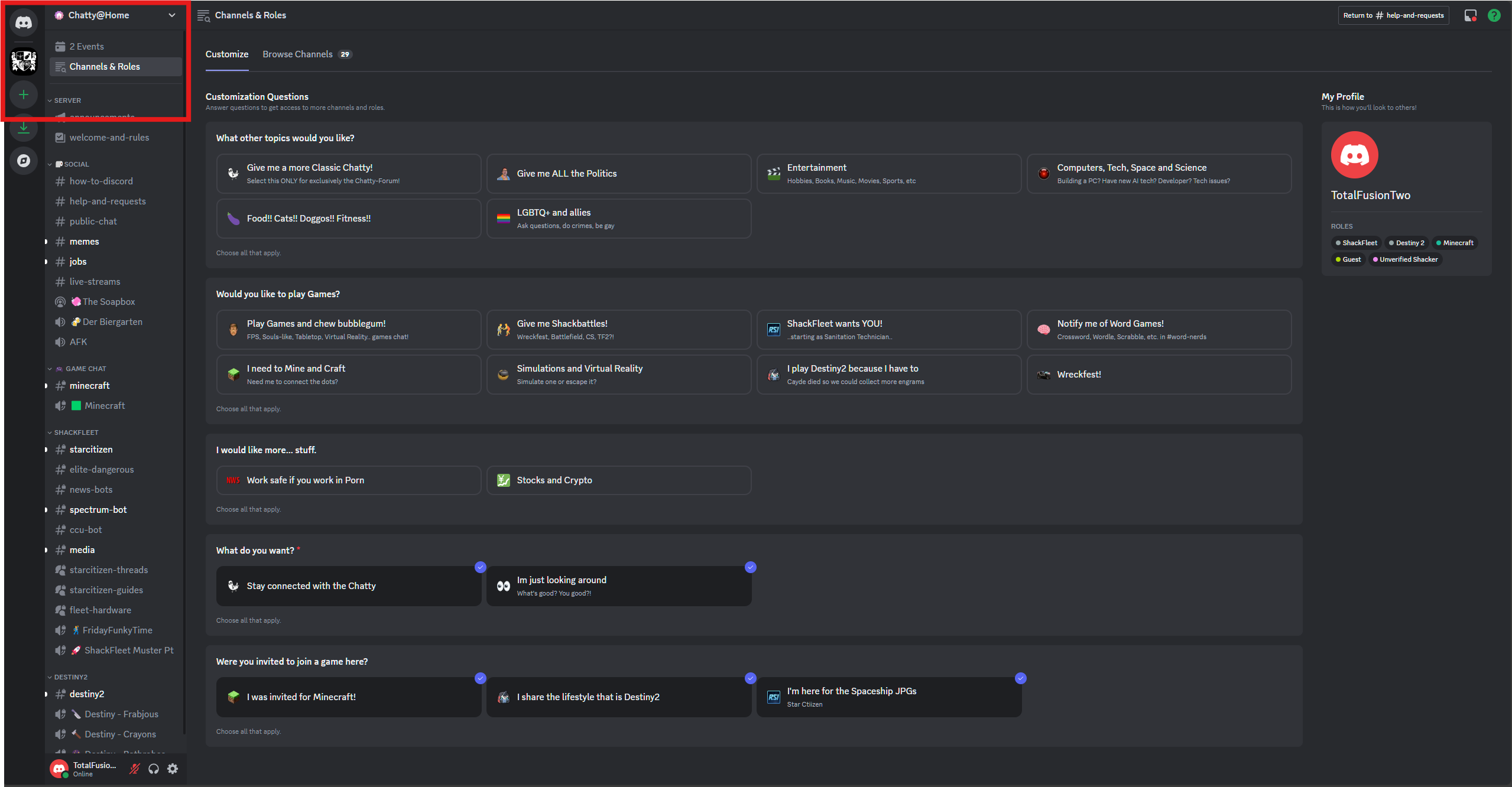
- Access the Screen:
- Click on Channels and Roles at the top of the Channel list
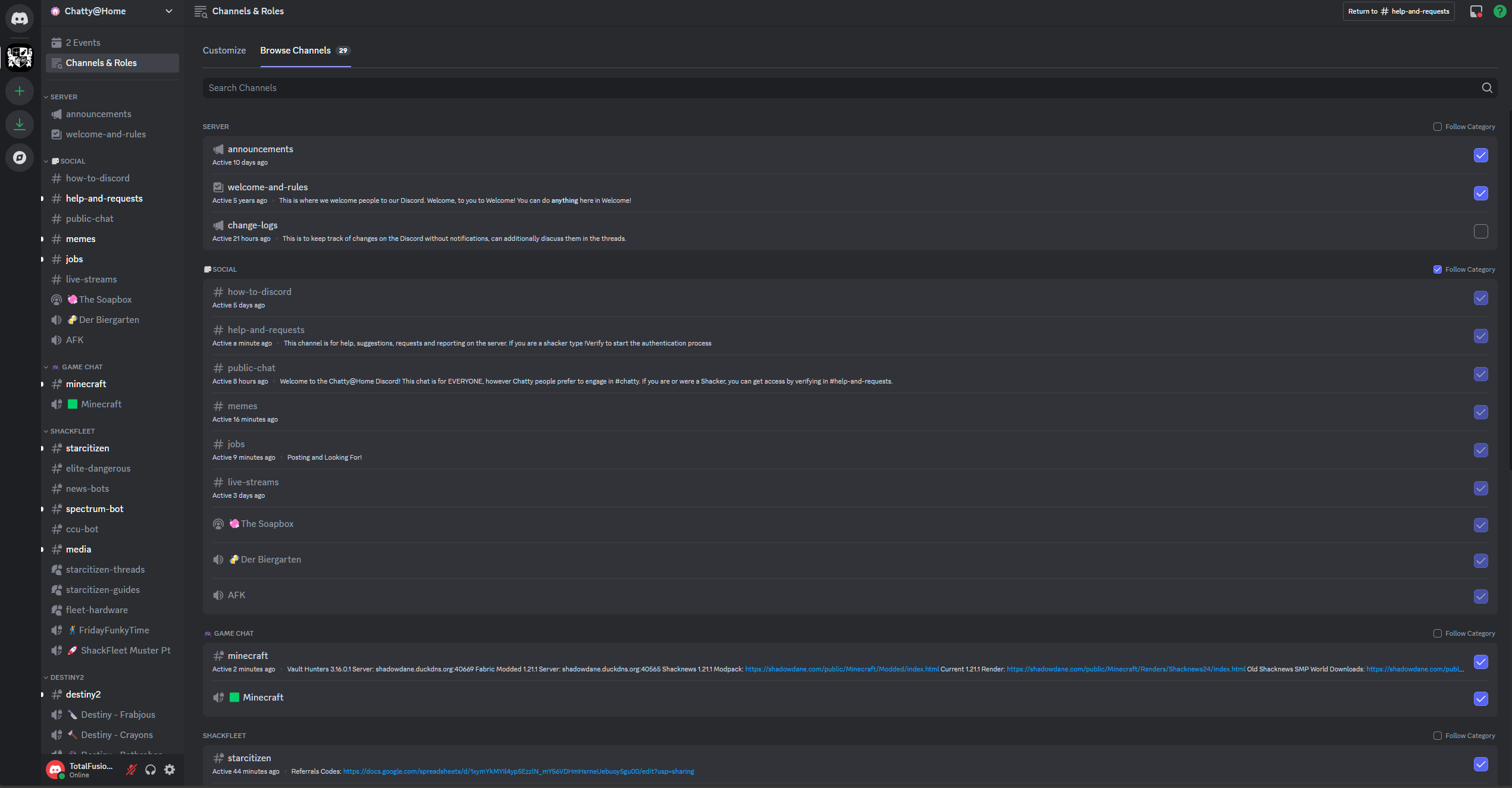
- Browse Available Channels:
- The “Channels” tab lists all the channels you currently have access to. Channels that you have not joined will have an empty checkbox next to them.
- Click on the checkbox to add the channel to your channel list.
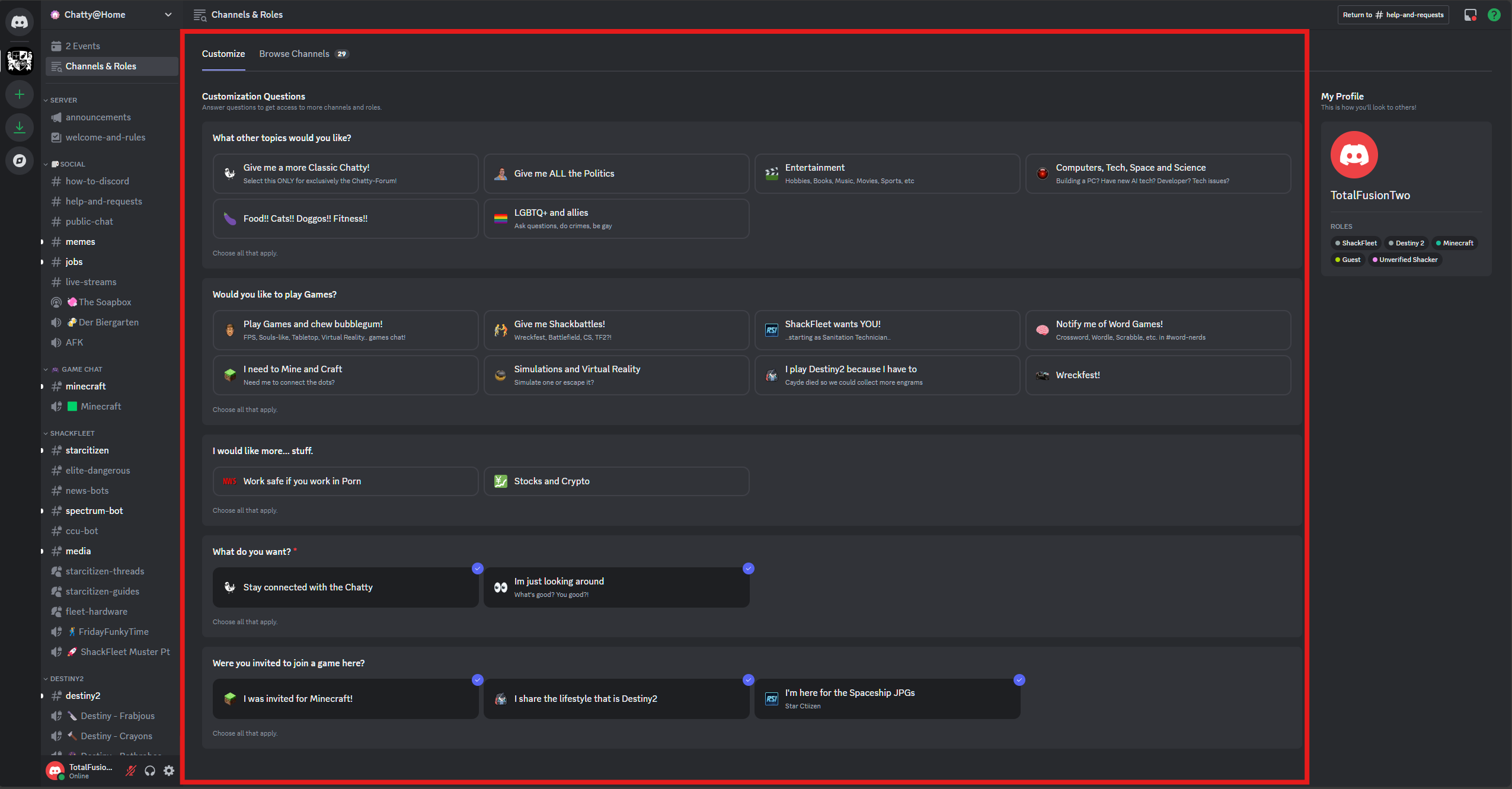
- Customize Roles (Optional):
- The “Roles” tab allows you to opt-in or opt-out of available roles, which might grant you access to additional channels.
- This list will be similar to the one you saw on the Onboarding screen.
Leaving Channels (without saying goodbye)
If you want to leave a channel the easiest way is to use the Browse Available Channel screen and uncheck the box next to the channel you want to leave.