Chatting, Threads and Forums
There are three different ways to chat with text in Discord:
- Channels:

- Threads:
 (in live chat) or
  (in left navbar)
 - Forums:
Channels
Channels are both the enterance to every day chatrooms where information is presented in real time and also how you access threads, which are a by channel feature.
- Organization: Chatty@Home has several different categories (e.g.,
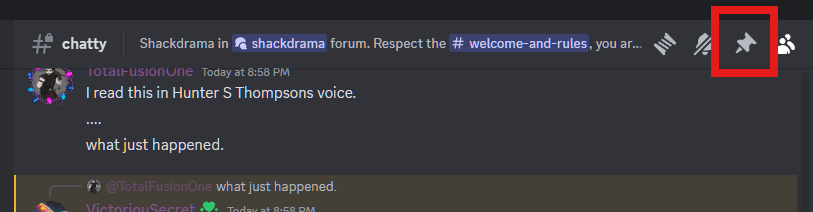
SHACKER,FOOD, HEALTH & FITNESS,TECH), each of which have channels dedicated to various topics (e.g.,#chatty#food-n-drink,#devdump). Categories can be collapsed or expanded; toggling a channel will collapse or expand any channel & thread belonging to that category that contain no unread messages. - Pinned Messages: Important information, rules, or announcements within a channel can be “pinned” to the top of the chat. Click the pin icon in the top right of a channel to view pinned messages.
- Announcement Channels: These special channels are used for important server-wide updates, much like the announcement section of our forum. Only designated roles (e.g., moderators) can post in announcement channels, but everyone can read them.
Threads: Deeper Dives into Topics
Threads allow for focused discussions within a channel, a mini-breakout chat.
- How to Start a Thread:
- Hover over a message you want to discuss further.
- Click the “Create Thread” icon (it looks like a # with lines).
- Give your thread a title.
- Select how long the thread should remain active before auto-archiving.
- Archiving Threads: Threads can be automatically archived after a period of inactivity (e.g., 24 hours, 3 days). This helps to keep channels tidy, but archived threads can still be viewed and searched.
- Subtopics within a Channel: By using threads effectively, we can maintain organized conversations within a channel, making it feel more like a structured forum discussion.
Forum Channels: Dedicated Spaces for Threaded Discussions
Discord offers a special type of channel called a Forum Channel that is designed to mimic the structure and feel of traditional online forums. While regular text channels and threads are used for live chatting, Forum Channels provide a more organized and visually distinct way to host multiple ongoing, threaded conversations.
How Forum Channels Work:
- Organized Posts: In a Forum Channel, each new topic is created as a separate “post,” much like creating a new post on the chatty. These posts are displayed in a grid or list view, making it easy to browse different topics.
- Dedicated Discussion Space: When you click on a post in a Forum Channel, it opens into a dedicated space where you can read the original post and all the replies, similar to viewing a thread on a forum. This keeps the conversation focused and prevents it from getting lost in the main channel feed.
- Tags and Sorting: Forum Channels allow you to add tags to each post, making it easier to categorize and filter discussions. You can sort posts by recent activity, creation date, and other criteria. You can also filter by whether a post has been resolved or not.
- Clear Overview: The layout of Forum Channels provides a clear overview of all the active discussions, making it easy to find topics that interest you and to see which posts have new replies.
Finding Your Way: Navigation and Search
- Channel Jumping (Ctrl+K or Cmd+K): Quickly switch between channels by pressing
Ctrl+K(Windows) orCmd+K(Mac) and typing the channel name. - Search Functionality: Discord’s powerful search allows you to find specific messages, users, or files.
- Use the search bar at the top right of the Discord window.
- You can filter your search by channel, user, date, and other criteria by using search modifiers like
in:#channel-nameorfrom:@username.
- Mentions (@username, @role): To direct a message to a specific user or group, use the “@” symbol followed by their username or role (e.g.,
@moderators). This is comparable to quoting someone on the forum.